Linux Basics
Linux is an open-source, Unix-like operating system that provides a robust, secure, and flexible environment for running applications, managing hardware, and supporting development and operations tasks. Unlike proprietary operating systems, Linux is freely available, and its source code can be modified, customized, and distributed according to user requirements. This openness has made Linux a preferred choice for servers, cloud platforms, DevOps workflows, and software development environments worldwide.
Linux is designed to be multi-user, multitasking, and stable, meaning multiple users and processes can run simultaneously without affecting system performance or reliability. Its modular architecture allows users to install only the components they need, reducing resource usage and improving system efficiency. Linux supports a wide range of hardware and software platforms, from small embedded devices to large-scale enterprise servers, making it highly versatile and scalable.
Understanding Linux is crucial for system administration, automation, and DevOps practices. It provides powerful command-line tools for managing files, processes, users, and system configurations. Tasks such as installing software, monitoring system performance, configuring networks, and managing permissions can be efficiently performed using Linux commands and scripts.
Linux also forms the backbone of many modern technologies. For example, cloud computing platforms, web servers, containers (Docker), and orchestration tools (Kubernetes) primarily run on Linux environments. Its scripting capabilities, through Bash, Python, or Shell scripts, allow automation of repetitive tasks, continuous integration, deployment pipelines, and configuration management—essential skills in DevOps and development workflows.
Furthermore, Linux is secure, stable, and community-driven. Frequent updates, active support from communities, and extensive documentation ensure that users can maintain secure, optimized, and reliable systems. Its open-source nature fosters collaboration and innovation, enabling users to build customized solutions, experiment with new tools, and integrate Linux seamlessly into complex infrastructure setups.
In essence, Linux is more than just an operating system—it is a foundation for modern development, cloud infrastructure, and DevOps practices, making it indispensable for anyone pursuing a career in IT, development, or operations.
Linux File System Hierarchy (FSH)
The Linux File System Hierarchy (FSH) is the organized structure used by Linux to manage and store files and directories on a system. Unlike Windows, where drives and folders are treated differently, Linux considers everything as a file, including hardware devices, drives, and even processes. This consistent approach simplifies file management, system administration, and scripting. At the top of the hierarchy is the root directory (/), which serves as the starting point for all files and directories. Every other directory in the system is a subdirectory of root, creating a tree-like structure that makes navigation and organization predictable and systematic.
 - visual selection.png)
1) / – Root Directory
The root directory, denoted by a single forward slash (/), is the topmost level of the Linux file system. All other directories and files branch out from root. It acts as the foundation for the entire operating system, containing essential system files, configuration settings, and directories needed for normal system operation. Without a properly structured root directory, the system cannot boot or function correctly.
2) /bin – Essential User Binaries
The /bin directory stores essential binary executables that are required for the system to operate and for users to perform basic tasks. Commands like ls (list files), cp (copy files), mv (move files), and cat (view file contents) reside here. These binaries are required during system boot and for single-user mode operation, ensuring that minimal commands are available even if other file systems are not yet mounted.
3) /sbin – System Binaries
The /sbin directory contains system binaries that are primarily used by the system administrator for maintenance, system recovery, and configuration. Unlike /bin, these commands are typically reserved for administrative tasks such as fsck (file system check), ifconfig (network configuration), and shutdown. These binaries are crucial for managing system health and performing low-level operations.
4) /home – User Home Directories
The /home directory contains personal directories for each user. Every user has a dedicated folder, such as /home/mayank, where all personal files, documents, downloads, and settings are stored. This separation ensures user data remains isolated and secure, allowing multiple users to work on the same system without affecting each other’s files. Permissions and ownership are used to control access to each home directory.
5) /etc – Configuration Files
The /etc directory stores system-wide configuration files. These files define how the system behaves, control installed applications, and manage services. Examples include network settings, startup scripts, user accounts, and service configurations. The /etc directory is critical for administrators because improper changes can affect system stability and security.
6) /var – Variable Data
The /var directory contains variable data that changes during system operation, such as logs, mail queues, print spools, and temporary application files. Since these files are updated continuously, administrators monitor /var closely to prevent issues like disk space exhaustion. Log files in /var/log are particularly important for troubleshooting and auditing system activity.
7) /usr – User Programs and Libraries
The /usr directory holds user-related programs, libraries, and documentation. Unlike /bin, which contains essential binaries, /usr contains large-scale applications and utilities installed for users. It also includes manual pages, shared libraries, and other resources that support user-level software. This directory is often read-only and shared across multiple systems in networked environments.
8) /tmp – Temporary Files
The /tmp directory is used for temporary files created by applications and processes. Files in /tmp are usually short-lived and often cleared on system reboot. Applications store transient data here, and users can also place temporary files. Proper management of /tmp is important because excessive accumulation can fill disk space and affect performance.
9) /dev – Device Files
The /dev directory represents hardware devices as files, allowing applications and users to interact with hardware using standard file operations. For example, hard drives, USB devices, terminals, and printers are accessible through device files in /dev. This abstraction allows programs to read from and write to devices without worrying about hardware specifics.
10) /proc & /sys – Virtual Filesystems
The /proc and /sys directories are virtual filesystems that provide information about the system and kernel. /proc contains runtime process information, CPU stats, memory usage, and system parameters. /sys exposes details about hardware and kernel interfaces. These directories do not consume disk space in the traditional sense but provide a dynamic interface for monitoring and managing the system in real time.
Importance of Linux in DevOps
Linux is an open-source operating system that has become the backbone of modern software development and deployment. In DevOps, where automation, scalability, and continuous integration/continuous deployment (CI/CD) are crucial, Linux provides a stable, secure, and flexible environment. Its compatibility with a wide range of DevOps tools and its robust command-line interface make it indispensable for developers, system administrators, and operations teams. Additionally, Linux’s modular architecture and open-source nature allow organizations to build scalable, customizable, and efficient DevOps workflows.
1. Open-Source and Cost-Effective
Linux is completely free and open-source, eliminating the need for expensive licensing fees that come with proprietary operating systems. In DevOps, multiple servers, test environments, and cloud instances are often required. Using Linux reduces overall infrastructure costs and allows teams to focus resources on development and automation rather than software licensing. Its open-source nature also means the code can be freely inspected, modified, and optimized to suit specific DevOps needs.
2. Stability and Reliability
Linux is known for its long-term stability and robust performance, even under heavy workloads. In a DevOps pipeline, servers must remain operational 24/7 to support continuous integration, deployment, and monitoring. Linux ensures that applications and pipelines run without unexpected crashes or downtime, providing a reliable platform for mission-critical operations. Its proven track record in enterprise and cloud environments makes it the OS of choice for DevOps teams.
3. Compatibility with DevOps Tools
Almost all major DevOps tools are natively compatible with Linux. Jenkins, Docker, Kubernetes, Ansible, Git, Terraform, and many others are developed to run optimally on Linux systems. This compatibility simplifies installation, integration, and configuration, enabling DevOps engineers to build automated pipelines efficiently. Linux’s environment ensures that these tools run reliably, interact seamlessly, and maintain high performance in production systems.
4. Strong Security Features
Linux provides extensive security mechanisms that are essential for DevOps operations. Features like file permissions, user authentication, firewall configurations, and SELinux (Security-Enhanced Linux) protect servers from unauthorized access. DevOps pipelines often involve automated deployments, multiple integrations, and infrastructure management; Linux’s security ensures that all operations are performed safely, data integrity is maintained, and systems are resilient to attacks.
5. Efficient Resource Management
Linux efficiently utilizes system resources like CPU, memory, and storage. DevOps environments often run multiple virtual machines, containers, and background services simultaneously. Linux’s lightweight kernel and process management capabilities ensure that resources are allocated optimally, preventing system slowdowns and ensuring high-performance application deployment.
6. Powerful Command-Line Interface (CLI)
The Linux command-line interface (CLI) provides DevOps engineers with unparalleled control over the system. Commands, scripts, and automation routines can be executed directly through the terminal. Bash scripting and shell commands allow teams to automate repetitive tasks, monitor system health, manage services, and deploy applications efficiently. CLI-based management reduces dependency on GUI tools and enables faster, scriptable, and reproducible DevOps processes.
7. Containerization and Virtualization Support
Linux forms the foundation for modern containerization and virtualization platforms like Docker, LXC, and Kubernetes. Its modular design, lightweight architecture, and efficient kernel allow containers to run isolated, reproducible environments. In DevOps, this means applications can be deployed consistently across development, testing, and production environments, supporting scalability and minimizing the "it works on my machine" problem.
8. Networking and Server Management
Linux provides advanced networking capabilities and robust server management features. Web servers (Apache, Nginx), database servers (MySQL, PostgreSQL), and application servers run natively on Linux. For DevOps engineers, Linux simplifies configuring networks, monitoring server performance, and managing distributed systems. Its networking stack, combined with automation tools, enables seamless deployment of microservices and cloud-native applications.
9. Community Support and Documentation
Linux has a vibrant global community of developers, administrators, and enthusiasts. Extensive documentation, forums, and open-source contributions make troubleshooting, learning, and adopting best practices easy. DevOps engineers benefit from this support to quickly solve problems, access pre-built scripts, and implement efficient deployment pipelines. Community support ensures that Linux evolves continuously with the latest technology trends, keeping DevOps practices modern and robust.
10. Automation and Scripting Friendly
Linux is inherently automation-friendly, supporting shell scripting and integration with tools like Ansible, Puppet, Chef, and SaltStack. DevOps pipelines rely heavily on automation for testing, deployment, monitoring, and configuration management. Linux’s scripting capabilities allow teams to automate complex workflows, reducing human error, accelerating deployments, and maintaining consistent infrastructure across multiple environments.
Need for Linux in DevOps
Linux is widely recognized as the preferred operating system for DevOps practices. DevOps focuses on automating software development, testing, deployment, and monitoring processes to deliver applications efficiently and reliably. Linux provides a stable, secure, and flexible platform that meets the diverse requirements of DevOps teams. Its compatibility with tools, scalability, and support for scripting and automation make it essential for managing modern CI/CD pipelines and cloud-native environments.
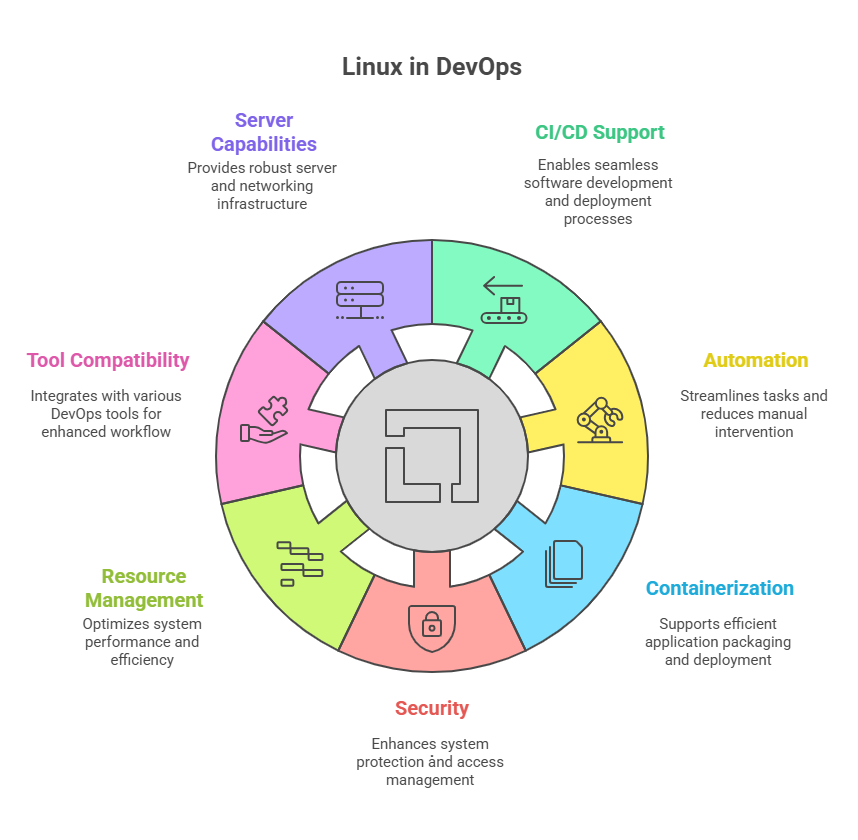
1. Supports Continuous Integration and Deployment (CI/CD)
Linux enables DevOps teams to implement CI/CD pipelines effectively. Its stability and scriptability allow automated builds, testing, and deployments without manual intervention. This reduces errors, ensures consistency across environments, and accelerates software delivery, which is the core requirement of DevOps practices.
2. Facilitates Automation
Automation is a cornerstone of DevOps, and Linux provides the ideal environment for scripting and automation. Tools like Bash, Ansible, Puppet, and Chef work seamlessly on Linux, enabling repetitive tasks—like server configuration, application deployment, and monitoring—to be automated. This increases efficiency, reduces human error, and ensures reproducible processes.
3. Supports Containerization and Microservices
Linux is the foundation for containerization platforms like Docker and orchestration tools like Kubernetes. DevOps workflows increasingly rely on containers and microservices for scalable, portable, and isolated application environments. Linux allows these containers to run efficiently, enabling consistent deployment across development, testing, and production.
4. Provides Strong Security and Access Control
Security is a critical need in DevOps, as pipelines involve multiple integrations and sensitive data handling. Linux offers robust security mechanisms, such as file permissions, user roles, and SELinux. These features ensure secure deployment, access control, and protection against unauthorized access, making it reliable for enterprise-grade operations.
5. Efficient Resource Management
DevOps environments often run multiple applications, containers, and services simultaneously. Linux efficiently manages system resources like CPU, memory, and storage. This ensures optimal performance of DevOps pipelines and reduces the chances of bottlenecks or system slowdowns during deployments.
6. Wide Compatibility with DevOps Tools
Linux supports nearly all major DevOps tools including Jenkins, Git, Terraform, Kubernetes, and Docker. This broad compatibility ensures smooth installation, configuration, and integration of tools, which is vital for implementing end-to-end DevOps pipelines efficiently.
7. Reliable Server and Networking Capabilities
Linux provides advanced server and networking management capabilities. It supports web servers, database servers, and application servers natively, allowing DevOps engineers to configure, monitor, and manage servers effectively. This ensures smooth communication between distributed systems, which is essential for cloud-based DevOps workflows.
8. Cost-Effectiveness and Open-Source Nature
The open-source nature of Linux eliminates licensing costs and allows teams to customize the OS according to their DevOps requirements. Organizations can deploy multiple servers, virtual machines, and cloud instances without incurring extra costs, making it a practical choice for large-scale DevOps environments.
9. Extensive Community Support
Linux has a vast global community offering forums, tutorials, and documentation. DevOps teams can quickly troubleshoot problems, adopt best practices, and implement new solutions efficiently. Community support ensures continuous improvement and innovation, which aligns perfectly with the iterative nature of DevOps.
10. Command-Line and Scripting Efficiency
Linux’s command-line interface enables precise control over servers and automation scripts. DevOps engineers can use shell scripts to automate tasks such as deployments, monitoring, and backups. This capability makes Linux an indispensable tool for streamlining workflows and improving operational efficiency.
Shell vs Terminal in Linux
Linux primarily uses a command-line interface (CLI) to allow users to interact with the system. The CLI provides a direct way to control the operating system by typing commands instead of relying on graphical interfaces. Two crucial components of the Linux CLI are the terminal and the shell, which are often misunderstood as being the same. The terminal acts as the interface, while the shell is the interpreter that processes commands. Understanding their roles and interactions is essential for executing commands, running scripts, automating tasks, and managing system resources effectively.
1. Terminal
A terminal is a software application or program that provides a text-based interface for users to enter commands and view output from the system. It functions as a communication window, allowing users to send commands to the operating system and display the results. Terminals do not process commands themselves but rely on a shell to interpret and execute them. Popular terminal applications in Linux include GNOME Terminal, Konsole, xterm, and Terminator. Terminals can also support multiple tabs, split screens, font customization, and color schemes, making it easier for developers and administrators to work efficiently.
2. Shell
The shell is the command-line interpreter that runs inside the terminal. It reads the user’s commands, interprets them, and communicates with the operating system to perform requested actions. Beyond executing commands, the shell provides scripting capabilities, allowing automation of repetitive tasks, complex workflows, and system management operations. Shells also manage environment variables, handle input/output redirection, and support features like command history, aliasing, and functions. Essentially, the shell converts human-readable instructions into system-level operations, acting as the “logic layer” between the user and the operating system.
3. Popular Linux Shells
Linux supports several shells, each with unique features, syntax, and customization options. Bash (Bourne Again Shell) is the default shell for most Linux distributions, offering robust scripting, job control, and command execution features. Zsh (Z Shell) provides advanced customization, themes, improved tab completion, and plugins for enhanced productivity. Fish (Friendly Interactive Shell) focuses on usability, offering smart suggestions, syntax highlighting, and interactive features that make it beginner-friendly. Other shells include Ksh (KornShell) and Tcsh, which have specialized capabilities for scripting and interactive use. Selecting a shell depends on user requirements, scripting needs, and personal workflow preferences.
4. How Terminal and Shell Work Together
The terminal and shell function together to allow users to interact with the system. The terminal provides the graphical or text window for input and output, while the shell interprets the commands and executes them. For example, when a user types ls in a terminal, the shell interprets this command, fetches the directory contents, and sends the results back to the terminal for display. Terminals can host multiple shell sessions simultaneously, enabling multitasking and complex operations across different environments. In effect, the terminal is the interface, and the shell is the executor that makes commands functional.
5. Example
When a user opens a terminal and types:
$ ls
ls is the shell command executed inside the terminal. The shell interprets the command, queries the operating system for the contents of the current directory, and sends the output back to the terminal for display. Similarly, commands like cd, mkdir, grep, and echo are all shell commands executed within a terminal session. This distinction illustrates that while the terminal is the window through which we interact, the shell is the interpreter that processes and executes the user’s instructions.
3. Users & Permissions in Linux
Linux is a multi-user operating system that allows multiple individuals to use the system at the same time, each with different access rights. Managing users and permissions properly is crucial for system security, as it ensures that sensitive files are protected from unauthorized access or modification. Linux uses user accounts, groups, and file permission settings to control access to resources in a structured manner. Permissions determine who can read, modify, or execute files and directories, while users and groups define ownership and access levels. Understanding these concepts is essential for effective system administration, secure collaboration, and preventing accidental or malicious system changes.
1. User Types
Root user (root) – The root user is the superuser in Linux with unrestricted access to all files, directories, and system commands. The root can override file permission restrictions, modify system configuration, install or remove software, and manage users and groups. This account is critical for system administration but must be used cautiously to avoid accidental damage.
Normal users – These are standard user accounts created for individuals who need system access. Normal users typically have restricted privileges, limited to their home directories and operations assigned by the administrator. They cannot modify critical system files or affect other users unless explicitly granted permissions.
Groups – Groups are collections of users that share common access rights or permissions. Assigning permissions to a group simplifies management, allowing administrators to control access for multiple users collectively. This system ensures that collaborative projects and shared resources maintain consistent access policies and security standards.
2. File Permissions
Every file and directory in Linux has a set of permissions that define which users can access or modify it. These permissions are critical for maintaining data integrity, confidentiality, and preventing unauthorized changes.
Permissions are divided into three types: read, write, and execute. Read allows viewing file contents or listing directory contents. Write allows modifying, creating, or deleting files. Execute allows running a file as a program or script, or accessing a directory as a command path.
Permissions are assigned to three categories of users: owner, group, and others. This structure ensures controlled access for different users according to their role, responsibilities, or association with the file.
Properly configured permissions reduce security risks, prevent accidental or intentional misuse, and ensure that shared resources are accessed safely. Permissions also form the foundation of Linux security policies and user management strategies.
3. Permission Types and User Categories
Permission types:
Read (r) – Allows viewing file content or listing directory contents without modifying them.
Write (w) – Allows editing, adding, or deleting files or directories.
Execute (x) – Allows running files as programs or scripts, or entering directories as part of the command path.
User categories:
Owner (u) – The user who created or owns the file, typically with the highest access level.
Group (g) – Users belonging to the file’s associated group, sharing the group-level permissions.
Others (o) – All other users on the system not included in the owner or group, usually with minimal permissions.
Example of file permissions:
-rwxr-xr--
rwx – The owner can read, write, and execute the file.
r-x – The group can read and execute the file but cannot modify it.
r-- – Others can only read the file.
This system ensures that every user category has clearly defined operations, minimizing the chance of unauthorized access or accidental file modification.
4. Changing Permissions
Linux provides commands to modify permissions, file ownership, and group associations.
chmod – Changes the permissions of a file or directory using symbolic notation (r, w, x) or numeric codes.
chown – Changes the owner of a file or directory to another user.
chgrp – Changes the group owner of a file or directory.
Examples:
chmod 755 file.txt # Owner: rwx, Group: r-x, Others: r-x
chown mayank file.txt # Change owner to user 'mayank'
chgrp devs file.txt # Change group to 'devs'
Using these commands ensures that administrators can enforce security policies, assign responsibilities, and manage shared resources efficiently.
5. Checking Permissions
The ls -l command provides a detailed view of files and directories, showing permissions, owner, group, size, and last modification date.
Example:
ls -l
-rwxr-xr-- 1 mayank devs 1024 Nov 20 10:00 file.txt
-rwxr-xr-- – File permissions.
mayank – Owner.
devs – Group.
1024 – File size in bytes.
Nov 20 10:00 – Last modified date.
file.txt – File name.
Checking permissions allows administrators to audit access, troubleshoot security issues, and ensure proper access control is maintained.

Class Sessions
Sales Campaign

We have a sales campaign on our promoted courses and products. You can purchase 1 products at a discounted price up to 15% discount.