Publishing reports to Power BI Service is a crucial step in transitioning from report creation to collaborative sharing and delivering enterprise-wide insights.
Power BI Service is a cloud-based platform that makes Power BI Desktop reports accessible to users across an organization, enabling real-time data interaction, collaboration, and secure distribution.
Effective publishing goes beyond simply uploading a file; it involves organizing content within workspaces, managing permissions, scheduling data refreshes, and optimizing performance for a seamless user experience.
When publishing, Power BI Desktop packages the data model and report visuals into a dataset-report pair uploaded to a selected workspace in the Power BI Service.
Workspaces act as collaborative environments, allowing teams to co-manage content and access controls.
After publishing, reports can be shared directly or pinned to dashboards, embedded in apps or websites, and integrated with other Microsoft 365 tools like Teams and SharePoint.
Additionally, scheduling automatic dataset refreshes ensures users always see the latest data without manual intervention.
Steps for Publishing Reports to Power BI Service
Publishing reports allows organizations to share insights at scale and collaborate in real time. The list below outlines the key steps for making reports available, refreshed, and governed.
1. Prepare the Report
Ensure the report is complete, tested, and optimized for performance and usability.
Confirm data connections are accessible from the cloud environment.
Clean up naming, format visuals, and confirm filters.
2. Publish from Power BI Desktop
Click File > Publish > Publish to Power BI or select the Publish button from the Home ribbon.
Authenticate if prompted with Power BI account credentials.
Select the appropriate workspace (avoid “My Workspace” for collaboration).
3. Post-Publishing Actions
Open the report in the Power BI Service using the provided link.
Set up scheduled refresh, configuring on-premises gateways if needed.
Manage access permissions by assigning workspace roles (admin, member, contributor, viewer).
Pin report visuals to dashboards and create apps for wider distribution.
4. Collaboration and Sharing
Share reports securely with stakeholders either via the Service or by embedding.
Use Power BI apps to package reports and dashboards for distribution.
Enable comments and subscriptions for proactive engagement.
Best Practices for Publishing
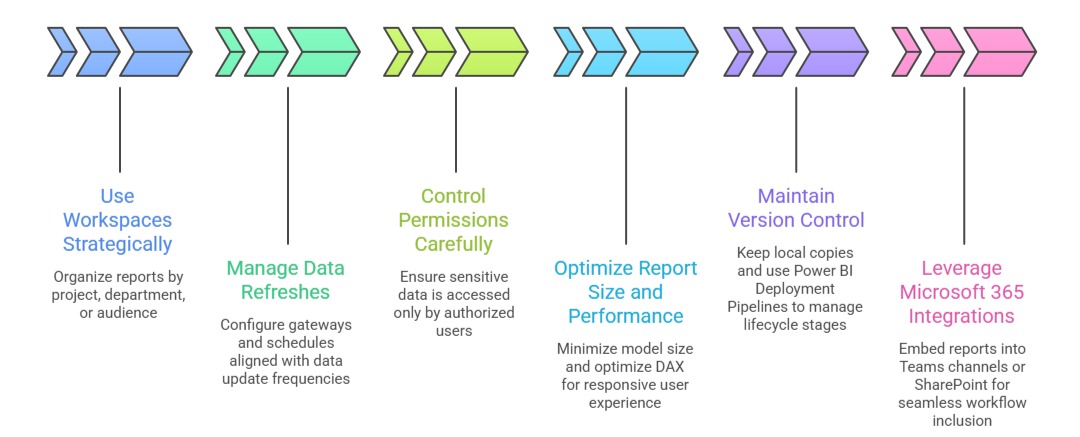
Well-managed publishing practices improve collaboration and trust in analytics. The list below outlines key guidelines for delivering reliable and accessible insights.