Docker is the technology that made containers practical, accessible, and ubiquitous in modern software development.
Released in 2013, Docker provided developers and operations teams with a simple, consistent way to package applications and run them in isolated environments, on any machine, without the "works on my machine" problem.
At the heart of everything Docker does are two fundamental concepts: images and containers.
Every Docker workflow, every deployment pipeline, and every containerized application begins with understanding what these two things are, how they relate to each other, and how to work with them effectively.
What is a Docker Image?
A Docker image is a lightweight, read-only template that contains everything needed to run an application — the application code, runtime environment, system libraries, configuration files, and dependencies — packaged together into a single, portable unit.
Think of an image as a blueprint or a recipe. It defines exactly what a container will look like and contain when it runs, but it is not itself a running process. Images are static — they do not change while containers run.
Key characteristics of Docker images:
1. Read-only: Images are never modified after they are built.
2. Layered: Images are built in layers, where each layer represents a change or addition on top of the previous one.
3. Portable: An image built on one machine runs identically on any machine with Docker installed.
4. Versioned: Images are tagged with version identifiers, making it easy to track and roll back to specific versions.
5. Stored in registries: Images are stored in and distributed through container registries.
Image Layers — How Docker Images Are Built
One of Docker's most important technical concepts is its layered architecture.
Every image is composed of multiple read-only layers stacked on top of each other. Each layer represents a specific instruction in the image build process — installing a package, copying a file, setting an environment variable.
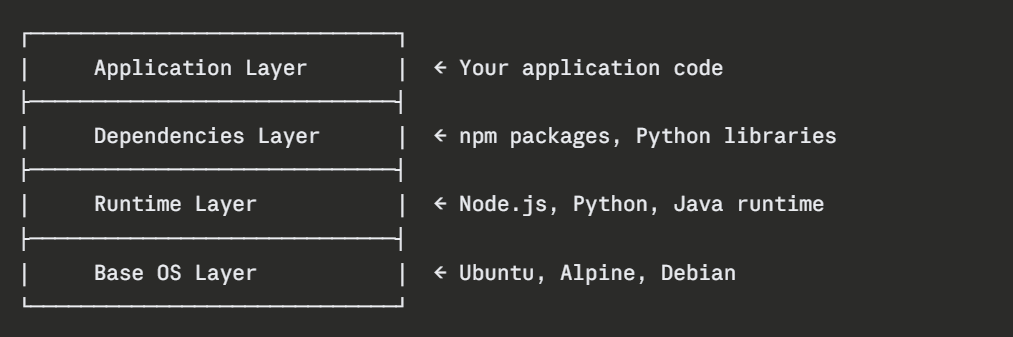
This layered approach delivers two major benefits. First, layers are cached, if a layer has not changed, Docker reuses the cached version rather than rebuilding it, making subsequent builds significantly faster.
Second, layers are shared — if two images share the same base layer, Docker stores that layer only once on disk, reducing storage consumption.
Docker Registries — Where Images Live
A Docker registry is a storage and distribution system for Docker images. It is where images are pushed after being built and pulled before being run.
Docker Hub is the default public registry, a massive library of official and community images for databases, web servers, programming language runtimes, and more. Organizations also use private registries to store proprietary images securely.
Popular Registries
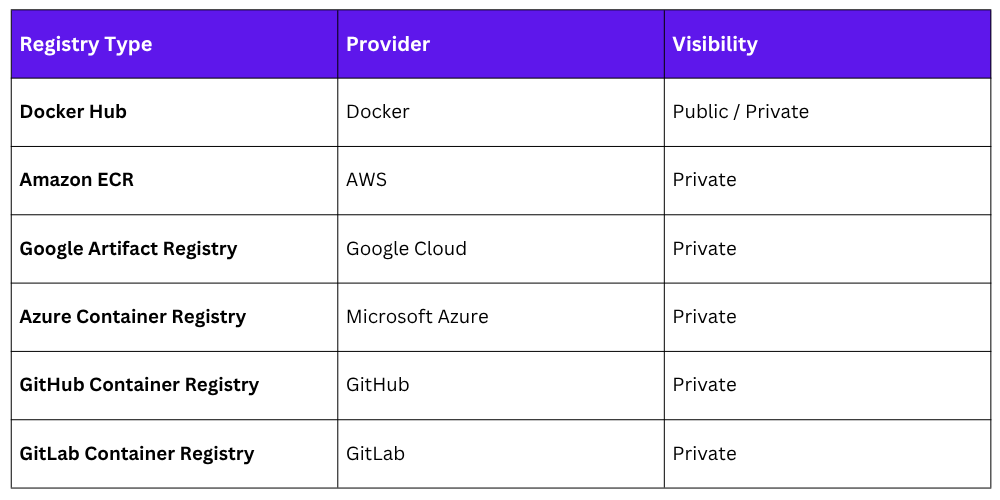
Pulling an official image from Docker Hub:

Pulling a specific version using a tag:

What is a Docker Container?
A Docker container is a live, running instance of a Docker image. If an image is the blueprint, a container is the building constructed from that blueprint.
When Docker runs an image, it creates a container, an isolated process with its own filesystem, network, and process space — running on the host machine.
Key characteristics of containers:
1. Lightweight: Containers share the host OS kernel and start in seconds.
2. Isolated: Each container has its own filesystem, network interface, and process namespace.
3. Ephemeral by default: Containers are designed to be temporary; when stopped and removed, their writable layer is discarded.
4. Multiple instances: The same image can run as many containers simultaneously, each completely independent.
The Image-to-Container Relationship
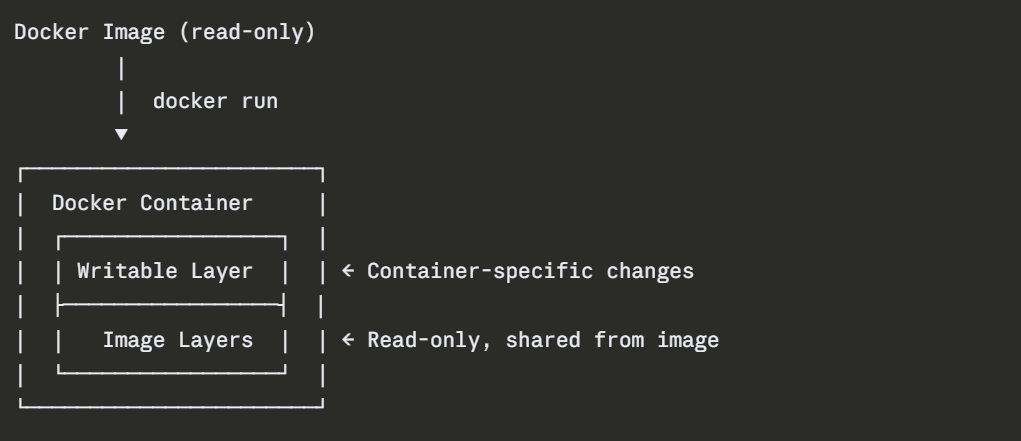 When a container runs, Docker adds a thin writable layer on top of the read-only image layers. Any changes made inside the container — files created, configurations modified, are written to this layer.
When the container is removed, this writable layer is discarded unless the data has been persisted using a volume.
Working with Docker Images
Listing all images stored locally:

Pulling an image from a registry:

Removing a local image:

Searching for images on Docker Hub:

Pushing a locally built image to a registry:

Tagging an image with a new name or version:

Working with Docker Containers
Running a container from an image:

Running a container in detached mode (in the background):

Running a container with a name, port mapping, and detached mode:

The -p 8080:80 flag maps port 8080 on the host to port 80 inside the container — making the containerized application accessible from the host machine.
Listing all running containers:

Listing all containers including stopped ones:

Stopping a running container:

Starting a stopped container:

Removing a container:

Viewing container logs:

Opening an interactive terminal inside a running container:

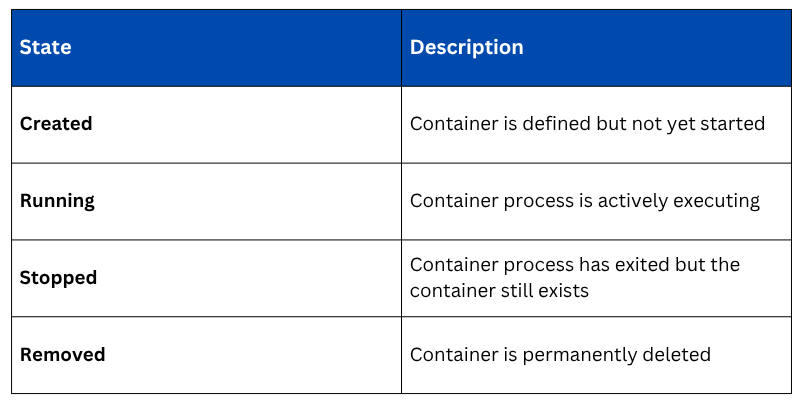
Container Lifecycle

Docker Volumes — Persisting Data Beyond the Container
Because containers are ephemeral, any data written inside a container is lost when the container is removed. Volumes solve this by mounting a storage location from the host into the container — persisting data independently of the container lifecycle.
Creating and mounting a volume when running a container:

This mounts the my-data volume to the PostgreSQL data directory inside the container. Even if the container is removed and recreated, the database data persists in the volume.
Listing all volumes:


Class Sessions
Sales Campaign

We have a sales campaign on our promoted courses and products. You can purchase 1 products at a discounted price up to 15% discount.