Building a Docker image is only half the work, the other half is knowing how to run, monitor, control, and manage the containers that bring those images to life.
In real-world environments, containers need to be started, stopped, inspected, configured, and cleaned up efficiently.
Understanding how to manage containers effectively is what separates someone who has merely heard of Docker from someone who can operate it confidently in a professional DevOps environment.
Running Containers
The docker run command is the primary way to create and start a container from an image. It combines container creation and startup into a single step and supports a wide range of options that control how the container behaves.
The most basic form:

This pulls the nginx image if not already available locally and starts a container from it. However, in practice, docker run is almost always used with additional flags.
Running in detached mode — keeps the container running in the background without occupying the terminal:

Assigning a name — makes the container easy to reference in subsequent commands:

Mapping ports — connects a host port to a container port so the application is accessible:

Port mapping follows the format -p host_port:container_port. In this example, visiting localhost:8080 on the host reaches port 80 inside the container.
Passing environment variables — injects configuration values into the container at runtime:

Running interactively — opens a terminal session inside the container, useful for exploration and debugging:

The -it flag combines -i (interactive) and -t (allocate a terminal). Typing exit ends the session and stops the container.
Auto-removing the container when it stops — useful for short-lived or one-off tasks:

Viewing and Inspecting Containers
Listing running containers:

Listing all containers — including stopped ones:

The output includes container ID, image name, status, port mappings, and container name — giving a clear overview of the Docker environment.
Viewing detailed information about a specific container:

This returns a detailed JSON object containing the container's full configuration — network settings, mounted volumes, environment variables, restart policy, and much more. It is the go-to command when debugging container behavior.
Viewing real-time resource usage — CPU, memory, network, and disk I/O for running containers:

Viewing the processes running inside a container:

Viewing Container Logs
Since containers run in isolation, viewing their output requires the docker logs command rather than looking at the terminal directly.
Viewing all logs from a container:

Following logs in real time — equivalent to tail -f:

Showing only the last N lines of logs:

Logs are one of the primary tools for diagnosing application errors, startup failures, and unexpected behavior inside containers. In production environments, logs are typically forwarded to centralized logging platforms like the ELK Stack or Datadog.
Controlling Container State
Stopping a running container gracefully — sends a SIGTERM signal, giving the application time to shut down cleanly:

Forcefully stopping a container immediately — sends a SIGKILL signal with no grace period:

Starting a stopped container:
.png)
Restarting a container:

Pausing a container — suspends all processes without stopping it:

Unpausing a paused container:

Executing Commands Inside Running Containers
The docker exec command runs a new command inside an already-running container — without stopping or restarting it. This is essential for debugging, inspecting files, and running administrative tasks.
Opening an interactive bash shell inside a running container:

Running a single command without opening a shell:

Copying a file from a container to the host machine:

Copying a file from the host into a running container:

Managing Data with Volumes
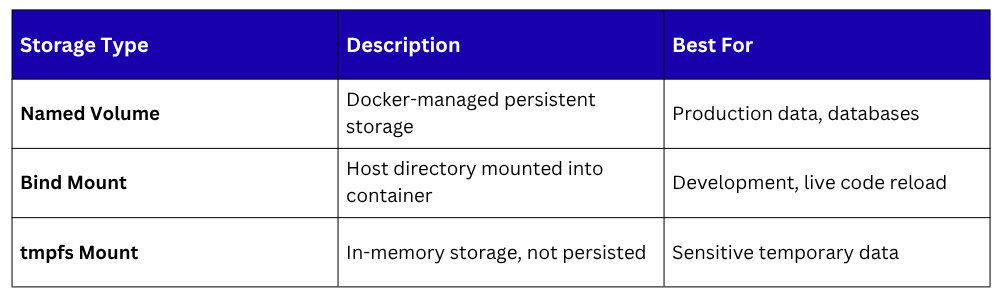
By default, all data written inside a container is lost when the container is removed. Volumes provide persistent storage that exists independently of any container — data survives container restarts, removals, and recreations.
Creating a named volume:

Mounting a volume when running a container:

Listing all volumes:
.png)
Removing a volume:

Bind mounts are an alternative to named volumes — they mount a specific directory from the host machine directly into the container. This is particularly useful during development, where code changes on the host should be immediately reflected inside the container:

Container Networking
Docker provides networking capabilities that allow containers to communicate with each other and with external systems.
Listing all Docker networks:

Creating a custom network:

Running a container on a specific network:

Containers on the same custom network can communicate with each other using their container names as hostnames — Docker's built-in DNS resolves container names automatically.
This is how multi-container applications, such as a web server connecting to a database — communicate without hardcoding IP addresses.
Container Restart Policies
In production, containers must recover automatically from failures. Docker's restart policies handle this without requiring external monitoring or manual intervention.

Setting a restart policy:

Cleaning Up the Docker Environment
Over time, stopped containers, unused images, and orphaned volumes accumulate and consume significant disk space. Regular cleanup keeps the Docker environment healthy.
Removing a stopped container:

Removing a Docker image:

Removing all stopped containers, unused images, and unused networks in one command:

Including unused volumes in the cleanup:

Viewing disk usage across Docker resources:


Class Sessions
Sales Campaign

We have a sales campaign on our promoted courses and products. You can purchase 1 products at a discounted price up to 15% discount.