Every Docker image begins with a Dockerfile.
A Dockerfile is a plain text file containing a set of instructions that tell Docker exactly how to build an image, what base to start from, what software to install, what files to include, and how to run the application.
Writing a Dockerfile is the fundamental skill that connects application code to containerized deployment.
It is what allows a developer to define, once and precisely, the exact environment an application needs, and have that environment reproduced identically on any machine that runs the image.
What is a Dockerfile?
A Dockerfile is a text file always named Dockerfile with no file extension, that contains a series of instructions. Each instruction performs a specific action during the image build process, and each instruction creates a new layer in the resulting image.
When the command docker build is run, Docker reads the Dockerfile from top to bottom and executes each instruction in order, producing a final image that can be run as a container anywhere Docker is installed.
Key Points About Dockerfiles:
1. Always named exactly Dockerfile.
2. Instructions are written in uppercase by convention (e.g., FROM, RUN, COPY).
3. Each instruction adds a new layer to the image.
4. Layers are cached — unchanged layers are reused in subsequent builds, making rebuilds faster.
5. The Dockerfile is committed to version control alongside the application code it builds.
Core Dockerfile Instructions
FROM
Every Dockerfile begins with a FROM instruction. It defines the base image — the starting point on top of which everything else is built. Base images are typically pulled from Docker Hub and represent a minimal operating system or a pre-configured runtime environment.


Choosing a minimal base image like Alpine Linux (a lightweight Linux distribution of only ~5MB) keeps the final image size small and reduces the attack surface.
WORKDIR
Sets the working directory inside the container for all subsequent instructions. If the directory does not exist, Docker creates it automatically. This keeps file paths clean and avoids the need for full paths in every instruction.

COPY
Copies files or directories from the host machine into the container's filesystem. This is how application code and configuration files are brought into the image.

ADD
Similar to COPY but with additional capabilities — it can extract compressed archives and fetch files from URLs. In most cases, COPY is preferred because it is simpler and more predictable. ADD is best reserved for situations where its extra capabilities are genuinely needed.

RUN
Executes a command during the image build process. Used for installing packages, running build scripts, creating directories, and any other setup that needs to happen at build time.


Combining multiple commands into a single RUN instruction using && is a best practice. It reduces the number of layers in the image and keeps the image size smaller.
ENV
Sets environment variables inside the container. These variables are available both during the build process and when the container is running.

EXPOSE
Documents which network port the application inside the container listens on. This is informational, it does not automatically publish the port to the host. Port publishing is done with the -p flag when running the container.

CMD
Defines the default command to run when a container starts from the image. A Dockerfile should have only one CMD instruction. If multiple are provided, only the last one takes effect.

ENTRYPOINT
Similar to CMD, but defines a command that always runs and cannot be easily overridden. It is used when the container is intended to behave like a specific executable. CMD and ENTRYPOINT are often used together — ENTRYPOINT sets the executable and CMD provides default arguments.

A Complete Dockerfile — Step by Step
Here is a complete, practical Dockerfile for a Node.js web application.
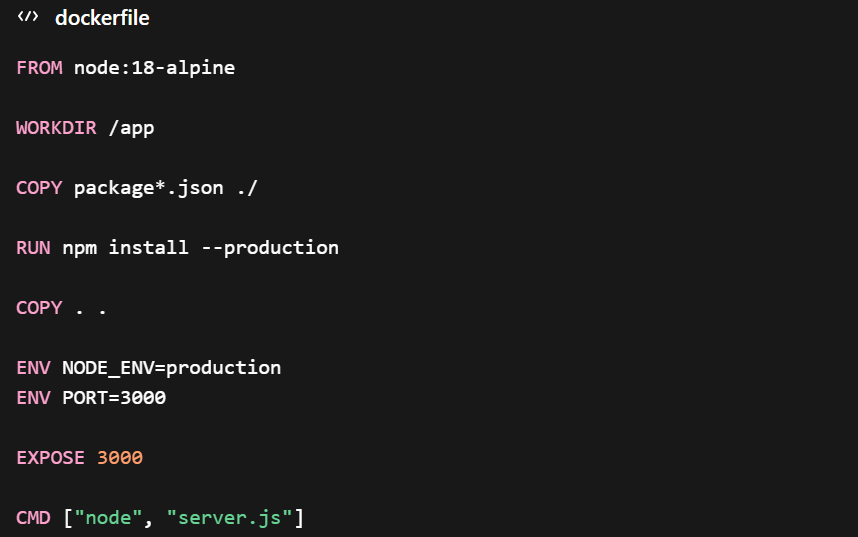
The Dockerfile starts with FROM node:18-alpine, which uses an official Node.js image based on Alpine Linux. This provides a lightweight and secure base with Node.js already installed.
WORKDIR /app sets /app as the working directory inside the container. All subsequent commands are executed relative to this directory.
COPY package*.json ./ copies only the dependency files (package.json and package-lock.json) into the container. This is done intentionally before copying the full source code to optimize Docker’s caching mechanism.
RUN npm install --production installs only production dependencies. Since only the package files were copied earlier, this step is cached and will only run again if those files change.
COPY . . copies the rest of the application source code into the container. Placing this step after dependency installation ensures that code changes do not trigger reinstallation of dependencies.
ENV NODE_ENV=production and ENV PORT=3000 define environment variables used by the application during runtime.
EXPOSE 3000 indicates that the application runs on port 3000. This acts as documentation for users of the image.
CMD ["node", "server.js"] specifies the default command to run when a container starts. In this case, it launches the Node.js application.
Building and Running the Docker Image
To build the Docker image from the Dockerfile:

This command creates an image named my-node-app with version 1.0.
To run a container from the built image:

This runs the container in detached mode and maps port 3000 from the container to port 3000 on the host.
The .dockerignore File
The .dockerignore file is used to exclude unnecessary files from the Docker build context, helping keep images small and builds efficient.
A typical example:
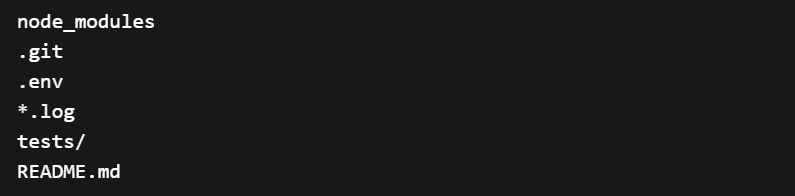
Excluding node_modules is especially important because dependencies are installed inside the container during the build process. Including them from the host would increase the image size and slow down builds unnecessarily.
Dockerfile Best Practices
1. Use specific base image tags: Use node:18-alpine rather than node:latest to ensure builds are reproducible and do not break when the latest version changes.
2. Order instructions from least to most frequently changed: Place instructions that change rarely (like installing system packages) near the top, and instructions that change often (like copying application code) near the bottom. This maximizes layer cache utilization.
3. Combine related RUN commands: Multiple RUN instructions create multiple layers. Combining related commands with && reduces image size.
4. Run as a non-root user: By default, containers run as root, which is a security risk. Create and switch to a dedicated non-root user:

5. Keep images small: Use minimal base images like Alpine, remove temporary files after installation, and avoid installing unnecessary packages.
6. Never store secrets in a Dockerfile: Passwords, API keys, and tokens must never be hardcoded in a Dockerfile. Use environment variables passed at runtime or secrets management tools instead.