Modern applications are complex. They have dependencies, runtime environments, configuration files, and libraries, and getting all of these to work consistently across different machines is a real challenge.
Docker solves this by packaging your application and everything it needs into a single, portable unit that runs the same way everywhere — on your laptop, on a test server, or in production on AWS.
The Core Problem Docker Solves
Before Docker, a common frustration in software teams was — "it works on my machine."
An application would run perfectly on a developer's laptop but fail in production because the server had a different version of Python, a missing library, or a different operating system configuration.
Docker eliminates this by bundling the application code, runtime, libraries, and configuration into one self-contained package. That package runs identically regardless of where it is deployed.
Key Concepts
1. Image: A Docker image is a read-only template that contains everything needed to run an application — the operating system layer, runtime, dependencies, application code, and configuration. Think of it as a blueprint.
Images are built once and can be run anywhere. They are also layered — each instruction in a Dockerfile adds a new layer on top of the previous one, and Docker caches these layers to make builds faster.
2. Container: A container is a running instance of an image. The relationship between an image and a container is the same as the relationship between a class and an object in programming — the image is the blueprint, the container is the live, running thing.
You can run multiple containers from the same image simultaneously. Each container is isolated — it has its own filesystem, its own network, and its own process space — but shares the host machine's operating system kernel.

3. Dockerfile: A Dockerfile is a plain text file that contains the instructions for building a Docker image. You define the base image, copy your application code, install dependencies, and specify what command to run when the container starts.
A simple Dockerfile for a Python application:
dockerfile
FROM python:3.11-slim
WORKDIR /app
COPY requirements.txt .
RUN pip install -r requirements.txt
COPY . .
CMD ["python", "app.py"]
```
Each line is an instruction. Docker executes them in order and builds the image layer by layer.
### Registry
A registry is a storage and distribution system for Docker images. Once you build an image, you push it to a registry. From there, any server or service can pull it and run it.
The two registries you will use in this course:
**Docker Hub** — The public registry. Free to use for public images. Most official base images — Python, Node.js, Ubuntu, Amazon Linux — are hosted here.
**Amazon ECR (Elastic Container Registry)** — AWS's private registry. Stores your custom application images securely within your AWS account. Integrates natively with ECS, EKS, and CodePipeline.
---
## 3. The Docker Workflow
The typical Docker workflow follows four steps:
**Write** — Create a Dockerfile that defines your application environment.
**Build** — Run `docker build` to turn the Dockerfile into an image.
**Push** — Push the image to a registry — ECR for AWS workflows.
**Run** — Pull the image and run it as a container — on your machine, on EC2, on ECS, or on EKS.
```
Dockerfile → docker build → Image → docker push → Registry
│
docker pull
│
Container running
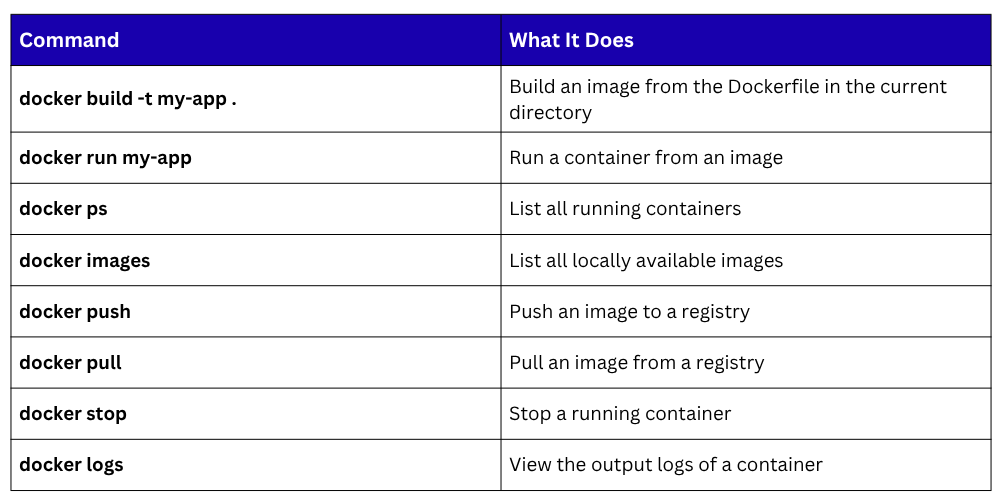
Key Docker Commands
Docker Best Practices
1. Use slim base images: Choose minimal base images like python:3.11-slim or node:20-alpine instead of full operating system images. Smaller images build faster, transfer faster, and have a smaller attack surface.
2. Never run containers as root: By default, containers run as the root user — a security risk. Always create a non-root user in your Dockerfile and switch to it before running your application.
3. Do not store secrets in images: Never hardcode API keys, passwords, or credentials in a Dockerfile. Use environment variables at runtime or retrieve secrets from AWS Secrets Manager.
4. Keep images small and focused: Each container should do one thing. Do not bundle your entire application stack into a single container — separate the web server, application, and database into individual containers.
5. Use .dockerignore: Just like .gitignore, a .dockerignore file tells Docker which files to exclude when building an image — node_modules, .git, test files, local environment files. This keeps images lean and prevents sensitive files from being included accidentally.