Cloud infrastructure makes it easy to spin up resources — and just as easy to forget about them. Without active cost monitoring,
AWS bills grow silently through idle resources, oversized instances, forgotten test environments, and unexpected data transfer charges.
AWS Cost Explorer and AWS Budgets give you the visibility and controls needed to understand where money is being spent and receive alerts before costs exceed acceptable limits.
AWS Cost Explorer
Cost Explorer is a visual analytics tool for understanding your AWS spending. It shows historical costs, identifies trends, and provides forecasts so you can anticipate future spend based on current usage patterns.
What Cost Explorer Shows
1. Cost over time: View your total AWS spend broken down by day, week, or month. Identify when costs changed and correlate spikes with infrastructure changes or traffic events.
2. Cost by service: See which AWS services are driving the most spend. EC2, RDS, and data transfer are typically the largest cost categories for most workloads.
3. Cost by linked account: For organisations with multiple AWS accounts, view spend across all accounts from a single management account.
4. Cost by tag: This is where Cost Explorer becomes genuinely powerful for DevOps teams. When resources are tagged consistently — by environment, team, application, or cost centre — you can filter costs by any tag.
This answers questions like, how much is the production environment costing compared to staging? How much is the payments service costing compared to the authentication service?
Tagging Strategy for Cost Visibility
Without tags, Cost Explorer shows you total spend but cannot tell you which team, application, or environment that spend belongs to. A consistent tagging strategy is essential.
At minimum, tag every resource with:
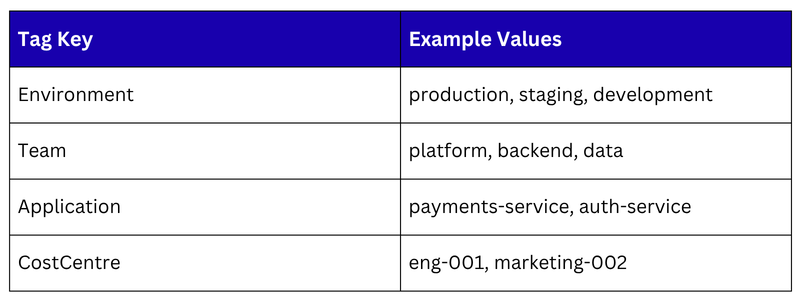
Enforce tagging through AWS Config rules — flag untagged resources as non-compliant and require tags before resources can be created.
Cost Forecasting
Cost Explorer uses your historical spending patterns to forecast future costs. If your current month is trending 40% higher than last month, the forecast will reflect that — giving you time to investigate and respond before the bill arrives.
Savings Plan and Reserved Instance Recommendations
Cost Explorer analyses your usage patterns and recommends Savings Plans or Reserved Instance purchases that would reduce your costs. It shows the estimated savings and the commitment required — useful data for making informed purchasing decisions.
AWS Budgets
Cost Explorer is for analysis and insight. AWS Budgets is for control and alerting. You define a spending limit and AWS Budgets notifies you, or takes automated action when you are approaching or have exceeded it.
Budget Types
1. Cost Budget: Set a maximum dollar amount for your total AWS spend, spend for a specific service, or spend for a tagged subset of resources. Receive alerts at defined thresholds — for example, alert at 50%, 80%, and 100% of the budget.
2. Usage Budget: Track usage of specific AWS services — EC2 hours, S3 storage in GB, Lambda invocations — rather than dollar spend. Useful for tracking service limits and identifying unexpected usage increases.
3. Savings Plans and Reserved Instance Coverage Budgets: Track whether your committed discounts are being fully utilised. If you purchased a Savings Plan but are only using 60% of it, a coverage budget alerts you so you can adjust purchasing decisions.
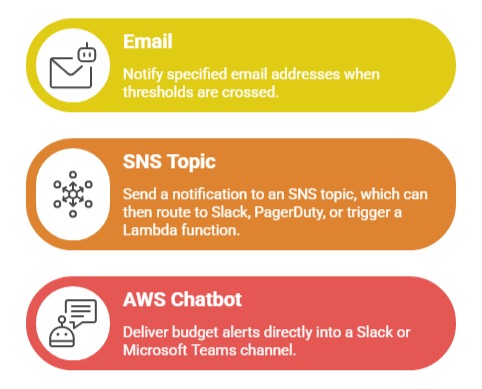
Budget Alerts
Every budget can trigger alerts through multiple channels:
Budget Actions
Budget actions go beyond alerting — they take automated steps when a budget threshold is reached.
Examples of budget actions:
1. When spending reaches 90% of budget — apply an IAM policy that prevents new EC2 instances from being launched.
2. When spending reaches 100% of budget — stop all non-production EC2 instances automatically.
3. When spending reaches 110% of budget — notify the engineering director and request manual review.
Budget actions are particularly valuable for development and testing environments where runaway costs from forgotten resources are common.
Common Cost Waste Patterns to Watch For
Cost Explorer and Budgets help you catch these common sources of unnecessary spend:
1. Idle EC2 instances: Instances running at near-zero CPU utilisation for extended periods. Right-size or terminate them. AWS Compute Optimizer analyses instance usage and recommends right-sizing automatically.
2. Unattached EBS volumes: Volumes that remain after an EC2 instance is terminated. They continue to incur storage costs. Delete volumes that are no longer attached.
3. Old EBS snapshots: Snapshots accumulate over time. Implement a lifecycle policy that deletes snapshots older than your retention requirement.
4. Data transfer costs: Transferring data out of AWS to the internet, or between regions, incurs charges. Review data transfer line items in Cost Explorer — unexpected spikes often indicate architectural inefficiency or misconfigured services.
5. Oversized RDS instances: Databases are often provisioned at maximum expected size and never reviewed. Use AWS Compute Optimizer and CloudWatch metrics to identify databases that could be downsized.
6. Forgotten NAT Gateways: NAT Gateways charge per hour and per GB of data processed. Test and development environments that no longer need internet access should have their NAT Gateways removed.
Cost Allocation and Team Accountability
In larger organisations, cloud cost accountability is as important as cost visibility. Cost allocation means attributing specific costs to the teams or products responsible for them, creating a culture where teams understand and own their infrastructure spend.
1. AWS Cost Allocation Tags: Enable cost allocation tags in the billing console. Once enabled, tagged resources appear as filterable dimensions in Cost Explorer and on your invoice.
2. Showback vs. Chargeback: Showback means showing teams their costs for awareness. Chargeback means actually billing teams or business units for their AWS spend. Both require consistent tagging. Start with showback and move to chargeback as tagging discipline matures.